The info.link/answers WordPress plugin connects your platform account to your website. Once installed, it automatically pulls your published FAQ content and displays it on the pages you choose, no manual copy-pasting required.
💡 Before you start: You’ll need Admin access to your WordPress dashboard. If you’re not sure whether you have this, please ask your website manager.
Go to the info.link plugin repository: https://github.com/House-Of-Change/answers-wordpress/releases
Download the latest .zip file from the Releases section or use this direct Download-Link: https://github.com/House-Of-Change/answers-wordpress/releases/download/v1.0.9/answers.zip
💡 You don’t need to unzip the file. WordPress installs directly from the zip.
Log into your WordPress admin dashboard. If you’re not sure whether you have Admin access, please ask your website manager.
Go to Plugins in the left sidebar
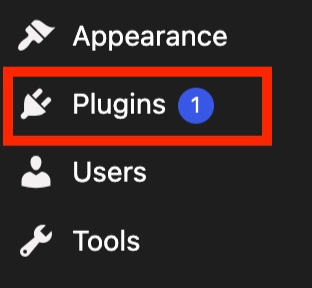
Click Add Plugin (Toggle on the sidebar or top of the page)
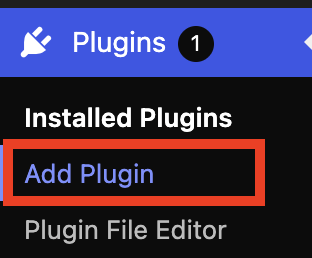
Click Upload Plugin

Select the .zip file you downloaded
Click Install Now, then Activate
✅ Once activated, the plugin creates a new tab in your WordPress dashboard.
In the info.link platform, open the product or category you want to display
Go to the Publish tab
Find the Endpoint section: your Feed ID is listed there
Click the copy icon on the right side to copy it
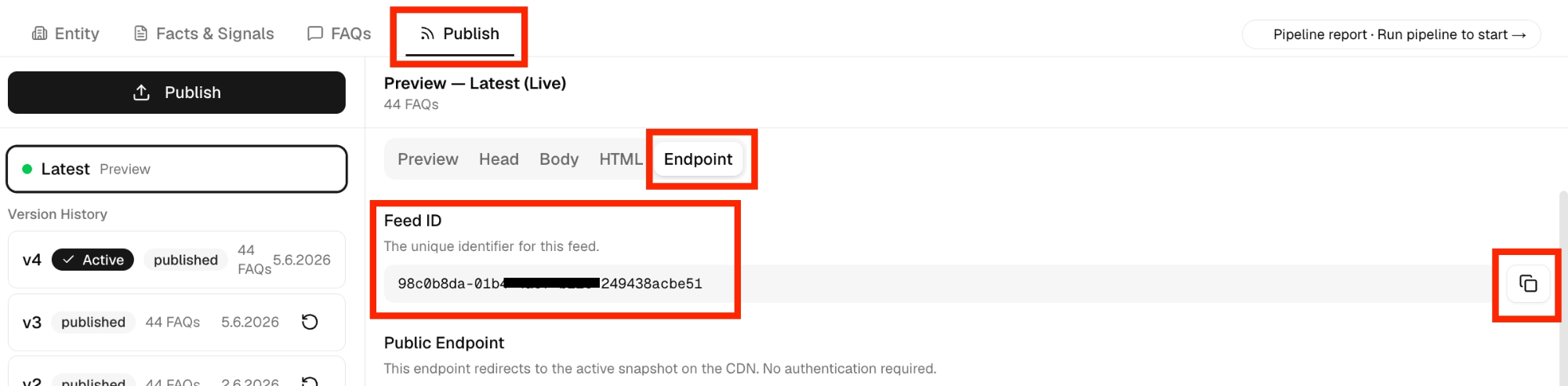
💡 Your Feed ID is unique to each Entity. If you want to display FAQs for multiple products, you’ll need a separate Feed ID for each one.
In WordPress, open the page or post where you want the FAQs to appear
Add a new Shortcode block
Paste the following and ❗ replace YOUR_FEED_ID with the ID you copied❗
[answers_faq id=YOUR_FEED_ID]Save and preview the page
Coming soon: The platform will generate the complete shortcode for you to copy in one click, so you won’t need to type the format manually.
By default, the plugin uses Scoped CSS, this means your FAQ content will inherit your website’s existing fonts and colours automatically.
If the content doesn’t look right, check your CSS settings in the platform’s Publish tab:
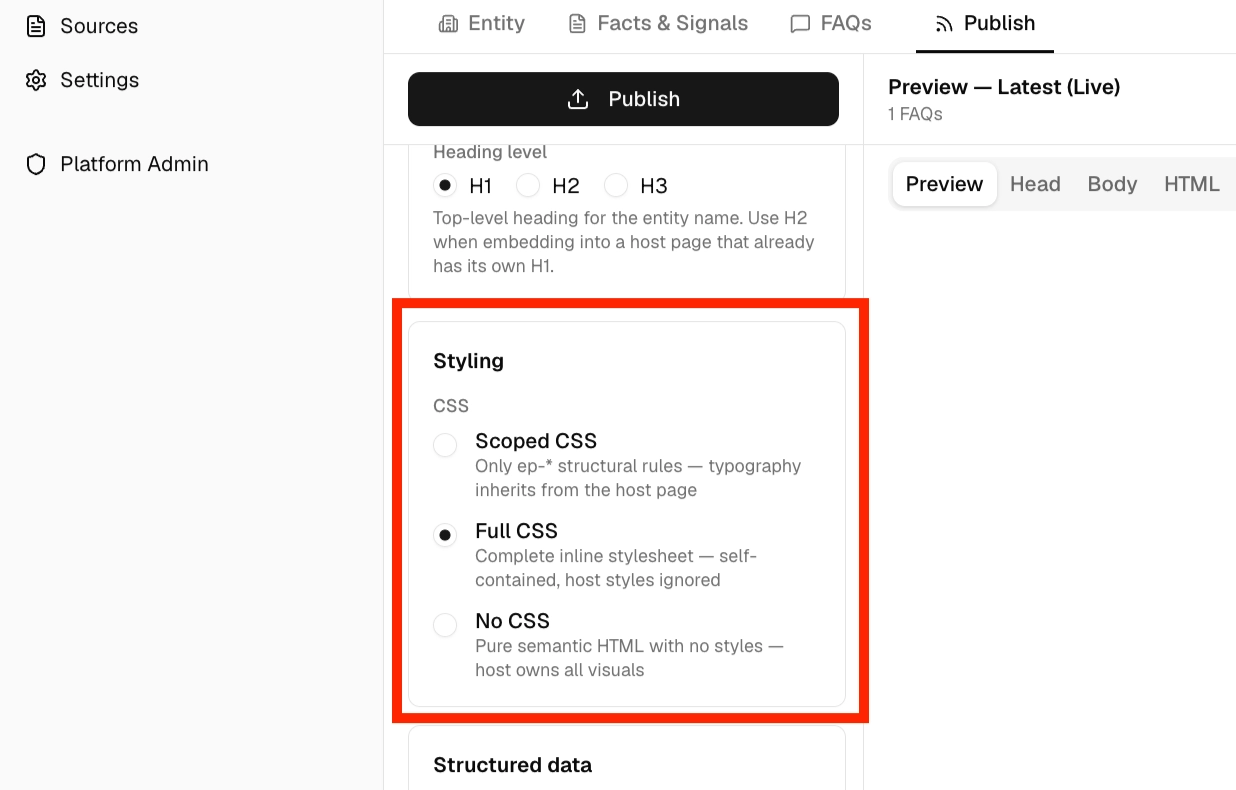
CSS option | What it does | When to use it |
Scoped CSS | Inherits your site’s fonts and colours while allowing custom style overrides. | Recommended for most sites |
Full CSS | Applies the platform’s own styling | If you prefer the info.link design |
No CSS | Inherits your site’s fonts and colours with no further customization | Rarely needed |
You can also fine-tune the heading level (H2, H3, etc.) in the platform settings to match your page structure.
The plugin connects to the info.link update system, which checks for new releases automatically every 24 hours.
When an update is available, you’ll see a notification in your WordPress Plugins dashboard. You can also click Check for updates manually at any time.
💡 You only need to install the zip file once. All future updates happen directly through your WordPress dashboard. No re-downloading required.
Standard WordPress pages use blocks, and the shortcode works natively there. If your site uses a page builder plugin (like Elementor or WP Bakery), the process is slightly different:
Elementor: A dedicated Elementor widget is available. Contact your account manager for the setup file.
WP Bakery: A custom WP Bakery module is available. Contact your account manager.
Other builders: May require custom treatment. Contact us before attempting the integration and we’ll advise on the best approach.
💡 If you’re not sure which page builder your site uses, your web developer or agency will know.
You don’t need to change your shortcode to control what content is displayed. All display settings are managed in the platform:
In the platform, go to Publish for the relevant Entity
Toggle sections on or off (e.g. hide Unique Facts, hide competitor comparisons)
Click Publish to create a new snapshot
Your website will automatically display the updated content on its next sync, you may need to refresh the page once and wait a few seconds.
✅ This means you can publish the same Entity in multiple places and control what appears where, without touching the shortcode.
❓The FAQs aren’t showing up on my page
Make sure the Entity has been published at least once in the platform (go to Publish → click Publish)
Check that the Feed ID in your shortcode matches the Endpoint ID shown in the platform
Check that the plugin is active in WordPress (Plugins → confirm the plugin shows as Active)
Try saving the page again after adding the shortcode
❓ The styling looks wrong or inconsistent with my site
Switch to Scope CSS in the platform’s Publish settings, then re-publish
If you want to override specific styles, the platform uses CSS tags prefixed with ep- (e.g. ep-header, ep-answer). You can target these in your own site’s CSS file
Your web developer can adjust the styling using these tags without changing anything in the platform
❓ The plugin URL field looks filled in but nothing is working
This was a known issue where the URL field displayed placeholder text that looked like a real URL (greyed-out text). The current version of the plugin fills this in automatically. If you’re on an older version, manually clear the field and enter the correct URL, then save.
❓ I’m getting an error after updating the plugin
Contact your account manager with a screenshot of the error message. In most cases, this can be resolved without re-installing the plugin from scratch.
Once the plugin is installed and a shortcode is placed on a page, here’s what the end-to-end flow looks like:
You verify FAQs in the platform
You click Publish and a new snapshot is created
The WordPress plugin fetches your content from the platform on the next page load.
Your website displays the updated FAQs automatically
💡 Newly published FAQ’s are usually visible immediately, but may be delayed by any custom cache settings of your Wordpress installation
AI crawlers (ChatGPT, Gemini, Perplexity) index your page and pick up the structured FAQ data
If the plugin isn't behaving as expected on your site, we may need some additional information to investigate. Please follow these steps and send us the output:
Log into your WordPress admin area (usually at yourwebsite.com/wp-admin)
In the left menu, go to Tools › Site Health › Info (German: Werkzeuge › Zustand der Website › Infos)
Click Copy site info to clipboard (German: „In die Zwischenablage kopieren"), usually found at the bottom of the page
Paste the text into a reply email to us (Ctrl + V or Cmd + V) and send it off
💡 This gives us a technical overview of your WordPress setup so we can identify the issue quickly. The information is only used for troubleshooting.